 Replayink
Record a demo, step by step#
- Add Replayink to Chrome. It also runs in Microsoft Edge.
- Open your web app and press
Shift+R. After a 3-2-1 countdown a small dock appears with a timer and a step count. - Use the app the way you always do. Every click, typed value, choice, drag and scroll becomes a step. It keeps recording across pages and across tabs the app opens.
- Press Stop. The player opens with your recording.
- Press Share link. The address is on your clipboard.
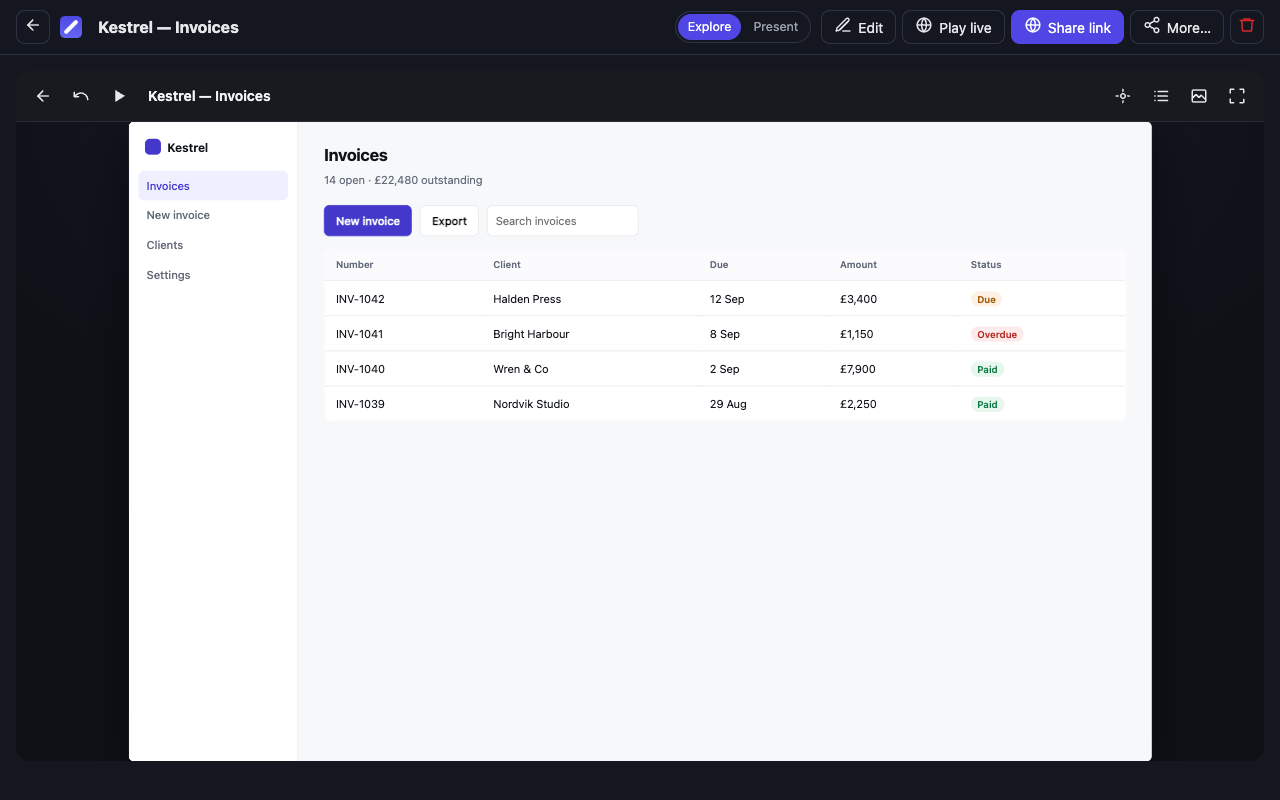
What the viewer gets#
The link opens straight into your app's screens, with none of Replayink's interface in the way.
- It plays like a video. A cursor moves, clicks and types through the steps you recorded.
- Then they can click it. Any click by the viewer takes over. Every button, menu and field you used while recording is live, in any order, not only the order you used them in.
- It behaves like your app. Each screen is a copy of the real page, with its own styles and fonts. Menus open, dialogs appear and spinners spin, because the app's own reactions were recorded and are played back.
There is also a simpler mode, Present: screenshots with a pulsing hotspot on the thing to click next, for a guided tour.
Point things out while you record#
Hold a tool key and draw while recording: P for the pen, H for the highlighter, A for an arrow, R for a box. Let go, and the next click goes to the app again. What you draw belongs to the demo and shows on the screen you drew it on.
Shift+Space freezes the recording so you can annotate a screen without anything you do becoming a step.
Tidy it up afterwards#
Edit opens the list of steps. Rename a step, write a note for it, reorder or delete steps. You do not have to: a recording is ready to share the moment you stop.
Ways to send it#
- A link that opens in the app. You choose whether it starts playing on its own.
- A link to one moment. End the link with
#s=12and it opens at step 12. - An embed. Add
?embed=1, or use the copy-embed button, to run it inside your docs, help centre or changelog. - Stats, for you. Views, unique viewers, how far people got and where they stopped. Only you can see them.
Publishing again keeps the same link.
Keep private things out of a demo#
Passwords, card numbers and one-time codes are masked before they are stored, and you can mask everything you type. But a recording keeps a copy of each page as you saw it, so a demo of a site you are signed in to can contain things that were private to you.
Before you publish a recording of a site you are logged in to, read section 3a of the privacy policy.
What an interactive demo cannot do#
The copy runs none of your app's code, so what works is what you did while recording. A button nobody pressed does nothing, and the player says so instead of pretending. Very large pages fall back to a screenshot for that step.
Who records interactive demos#
- Sales and marketing: a product demo a prospect can try without an account
- Support: an answer that shows the clicks instead of describing them
- Onboarding and training: a walkthrough of an internal tool that new people can click through at their own pace
- Product teams: a bug report or a proposal that someone else can replay
Add Replayink to Chrome and record your first demo. Free, for Chrome and Edge.