 Replayink
Draw on a page, step by step#
- Add Replayink to Chrome. It also runs in Microsoft Edge.
- Open any website and press the backtick key (the one to the left of
1) to bring out the toolbar. - Press
Pfor the pen and draw. - Press
Alt+Shift+Cto copy a screenshot of the page with your drawing on it, ready to paste into a chat, an email or a ticket.
Every drawing tool has a key#
Ppen, for freehand drawingAarrow andLlineRrectangle andOellipse.Shift+Ffills the shape.Ttext label, typed straight onto the pageNsticky noteHhighlighter, for textEeraserVselect: move, resize or delete what you drew
1 to 8 change the colour, and [ and ] make the stroke thinner or thicker. Ctrl+Z (⌘Z on a Mac) undoes. Every one of these keys can be changed in Settings.
The drawing stays on the page#
What you draw is saved in your browser against that page's address, so it is there when you come back. To clear it, erase the marks or select them and press Delete.
Draw while you present#
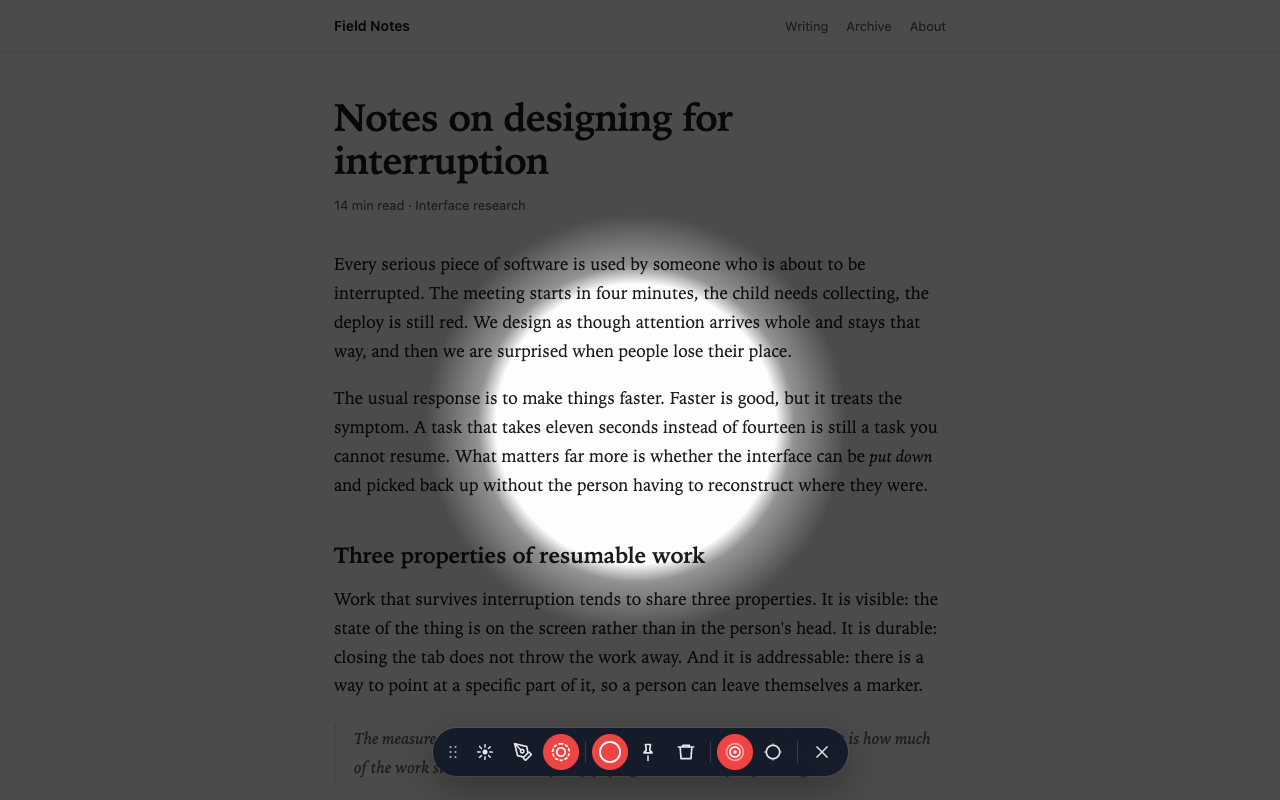
For a call or a screen share you usually want ink that goes away again. Presenter mode (Shift+P) has a laser pointer (Shift+L), ink that fades on its own (Shift+D) and a spotlight that dims everything but the part you are talking about (Shift+S). The page underneath stays fully usable, so you can keep clicking while you point.
Save or share the drawing#
- Copy a screenshot with
Alt+Shift+C, or save it as a PNG withCtrl+Shift+S(⌘⇧Son a Mac). - Send a link. Copy share link packs the drawing into the link itself. Whoever opens it with Replayink installed sees your drawing on the same page.
- Ask for feedback. Pin a comment next to what you drew and mention a teammate. See how to comment on a web page with your team.
Where drawing does not work#
Chrome does not let any extension run on its own pages: chrome:// addresses, the Chrome Web Store and other extensions' pages. Everywhere else, including PDFs, the toolbar is there. See how to annotate a PDF in Chrome.
Add Replayink to Chrome and draw on the page in front of you. Free, for Chrome and Edge.